Tool policies
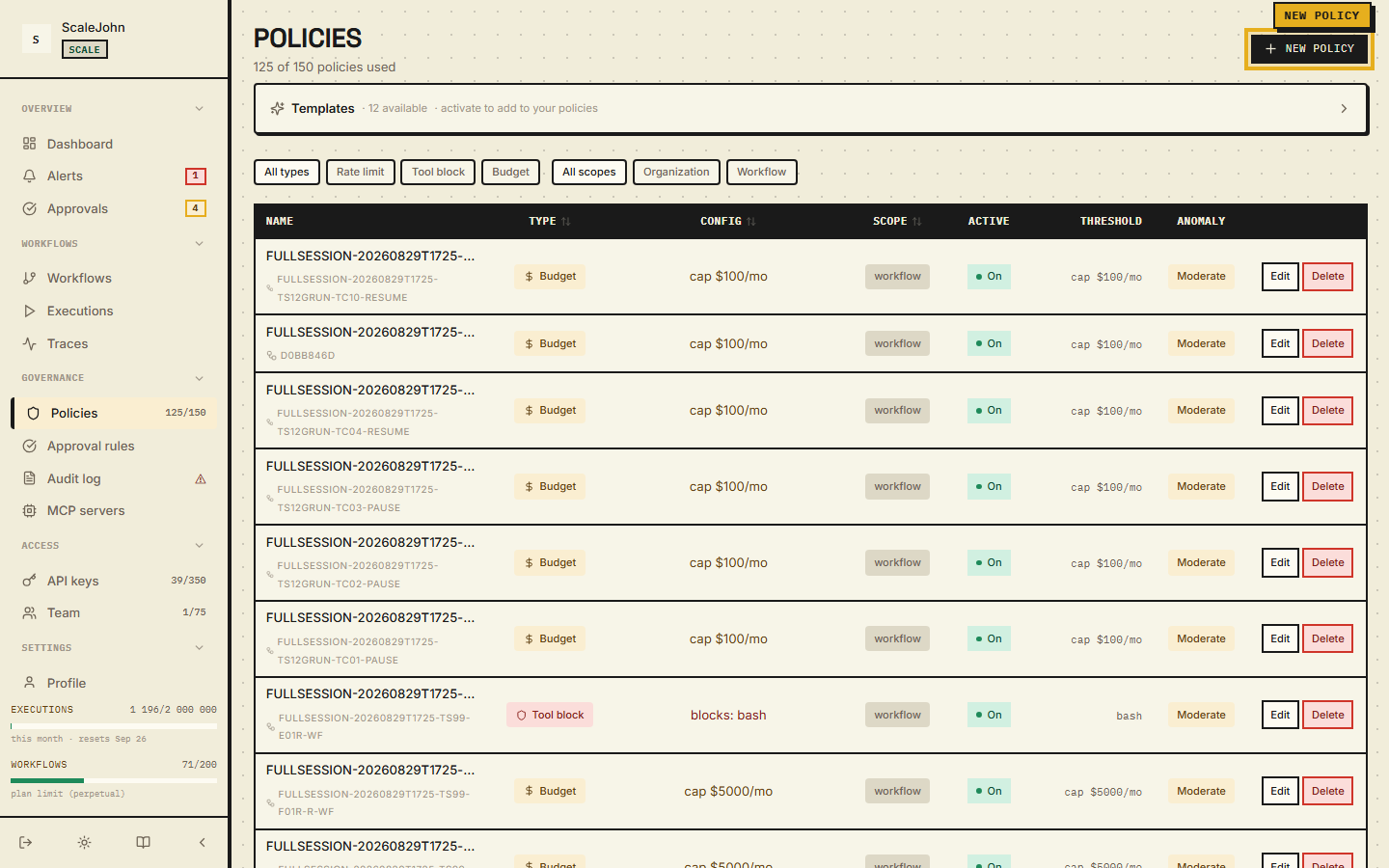
A ToolBlock policy decides which tools the agent is allowed to call
and which it can't. In the dashboard these rules live under a policy
of type ToolBlock — see Policies for the general
overview. This page covers how to write the patterns inside the
policy.
Where you see it in the dashboard
When you create or edit a policy and pick ToolBlock as the
type, the dashboard shows a JSON editor for the tool_pattern,
blocked_tools, or tools array. The "Test pattern" preview at the
bottom lets you paste a tool name and see whether any pattern
matches — useful for debugging.
What a tool name looks like
The agent calls tools by name. The canonical tool name format:
| Type | Format | Example |
|---|---|---|
| Built-in tool | lowercase string | bash, file_write, execute_code |
| MCP tool | mcp://{server}/{tool} |
mcp://filesystem/read |
| Custom tool | custom:{name} |
custom:my_tool |
The policy matcher is name-based. The SDK sends the tool name to the
gate, the gate checks it against every active ToolBlock policy, and
the verdict comes back as allow, block, or require_approval.
How to write the patterns
Each entry in a ToolBlock policy is one of:
- Exact name —
"stripe.charge"blocks only that one tool. - Glob —
"send_*"blocks anything starting withsend_. *alone — blocks everything.
Each entry is capped at 4096 bytes. The cap exists because the matcher scans every pattern on every gate call — a 10 MB pattern would burn CPU on each call.
The matcher runs case-insensitively against the canonical tool name.
What a ToolBlock policy does
A ToolBlock policy blocks tool calls whose name matches one of
its patterns. There is no action = require_approval field on a
ToolBlock — for "I want a human to approve before this tool runs",
create an approval rule instead (see
Human approval). The two are separate rule
objects; ToolBlock and approval rules don't share a configuration
schema.
ToolBlock is always Hard: it never lets through, regardless of
the budget's enforcement_mode. See
Reliability matrix.
If the gate cannot evaluate the ToolBlock check (Redis or policy
cache unavailable), it fails closed — 403 TOOL_BLOCKED (SDK
error_code = "NR-T001"). The agent never runs an unverified
sensitive operation.
ToolBlock and approval rules are distinct rule objects — they don't share a configuration schema. A ToolBlock policy always blocks; to require human review first, use an approval rule instead.
A worked example
Suppose your agent has these tools: tavily_search, send_email,
db.write, db.drop, stripe.charge, read_file.
You want to:
- Allow read-only operations (
tavily_search,read_file) - Block destructive operations (
db.drop,stripe.charge) - Require approval for any outbound communication (
send_email) - Allow normal DB writes (
db.write) but blockdb.drop
Two ToolBlock policies and one approval rule:
The example below shows the request payload shape — what you POST to the dashboard / API. It's not the storage schema, just the public input format.
{
  "policies": [
    {
      "name": "Block destructive",
      "type": "ToolBlock",
      "scope": "Org",
      "config": {
        "tool_pattern": ["db.drop", "stripe.*"]
      }
    }
  ],
  "approval_rules": [
    {
      "name": "Outbound needs approval",
      "tool_patterns": ["send_email"],
      "action_label": "send email to customer",
      "expires_in_seconds": 300
    }
  ]
}
send_email now triggers the approval flow (a human clicks
Approve in the dashboard before the call goes through). db.drop
and stripe.charge are blocked outright. The two policies do not
interact — ToolBlock checks and approval-rule checks are independent
paths in the gate.
Validation at policy creation
The dashboard rejects invalid patterns at save time:
| Error | Cause | Fix |
|---|---|---|
400 bare_string_pattern |
"pattern": "send_*" instead of "pattern": ["send_*"] |
Always use an array, even for one entry |
400 pattern_too_long |
An entry longer than the per-pattern byte cap | Split into multiple patterns |
400 invalid_glob |
Contains control characters | Remove \n, \r, \t |
Plan gating
ToolBlock policies require the Custom Policies feature, which is
on Growth+ plans. Lite and Starter can have BudgetLimit and
RateLimit policies, but not ToolBlock.
Approval rules (separate from ToolBlock) are gated by the
approvals plan feature. The per-tier cap matches:
| Plan | Approval rules allowed | Why |
|---|---|---|
| Lite | 0 | approvals feature disabled |
| Starter | 0 | approvals feature disabled (server-side invariant: approval_rules > 0 ⇒ approvals == true) |
| Growth | 20 | approvals enabled |
| Scale | unlimited | approvals enabled, no cap |
| Enterprise | unlimited | approvals enabled, no cap |
The gate enforces approval_rules = 0 server-side on Lite and
Starter — even if you mint a key on a higher tier and downgrade,
existing rules are kept (for audit) but no new rule can be created
until the plan is upgraded back.
On Lite / Starter, the dashboard shows ToolBlock policy creation greyed out with an "Upgrade" link.
How to debug a block you didn't expect
If your agent reports error_code = "NR-T001" (wire TOOL_BLOCKED) on
a call you think should be allowed:
- Open the workflow in the dashboard.
- Click Effective policy. The merged set shows every ToolBlock pattern that could match.
- Open the Audit log and filter by
decision = blockand the tool name. The log shows which pattern matched. - If a pattern is too broad (
*matches everything), narrow it in the policy editor. - If the pattern is wrong entirely, deactivate the policy and re-create it with the correct list.
See also
- Policies — the dashboard view, aggregation rules, and most-restrictive-wins semantics
- Sensitive tools — the policy-driven way to express "this tool needs review" (not a built-in SDK list)
- Tool catalog — common tool names with risk ratings
- Human approval — the approval-rule path, distinct from ToolBlock
Deep dive
A ToolBlock check operates on the canonical tool name and nothing
else. The gate resolves the effective tool list from the request
before evaluating anything, so a call carrying one tool and a call
carrying a list are treated alike. Patterns are collected from the
tool_pattern, blocked_tools and tools keys, trimmed and
de-duplicated, so "bash" and "bash " collapse into one entry.
Matching runs case-insensitively against the canonical name, and
control characters in either the incoming tool name or a pattern
are rejected before the check runs.
The pattern language is small. * is the only metacharacter: it
matches any run of characters, so send_* matches anything
starting with send_ and bash.* matches the bare name bash
as well as dotted continuations like bash.foo and bash.foo.bar.
A pattern with several stars, such as *.drop_*, matches when
every literal segment appears in order, which is why *.drop_*
matches s3.drop_table but not s3.execute_drop. | collapses
several alternatives into a single entry. Neither ? nor **
is supported — both are matched as ordinary characters — and a
bare literal matches only itself, never a substring. Each entry is
capped at 4096 bytes, bounding the work the matcher does on every
gate call.
ToolBlock is always hard, independent of a budget's enforcement mode, and it is evaluated ahead of rate-limit and budget accounting, so a blocked call never receives a budget envelope. If the check cannot be evaluated at all, the gate fails closed. A block reports the pattern that fired, which is what the audit log records, so an unexpected block can always be traced to one entry.
Validation at creation time rejects the configurations that would
otherwise mean "block nothing": an empty string, an empty array,
an empty config object, and the plural tool_patterns key. A typo
such as block_tools or blocked_tool is an error rather than a
silently ignored rule. Because * on its own blocks everything,
narrowing a policy is the operator's responsibility, and the
merged effective set is what the dashboard shows before a change
ships. Matching never inspects tool arguments: a rule is about
which tool runs, not what it is called with.