Team
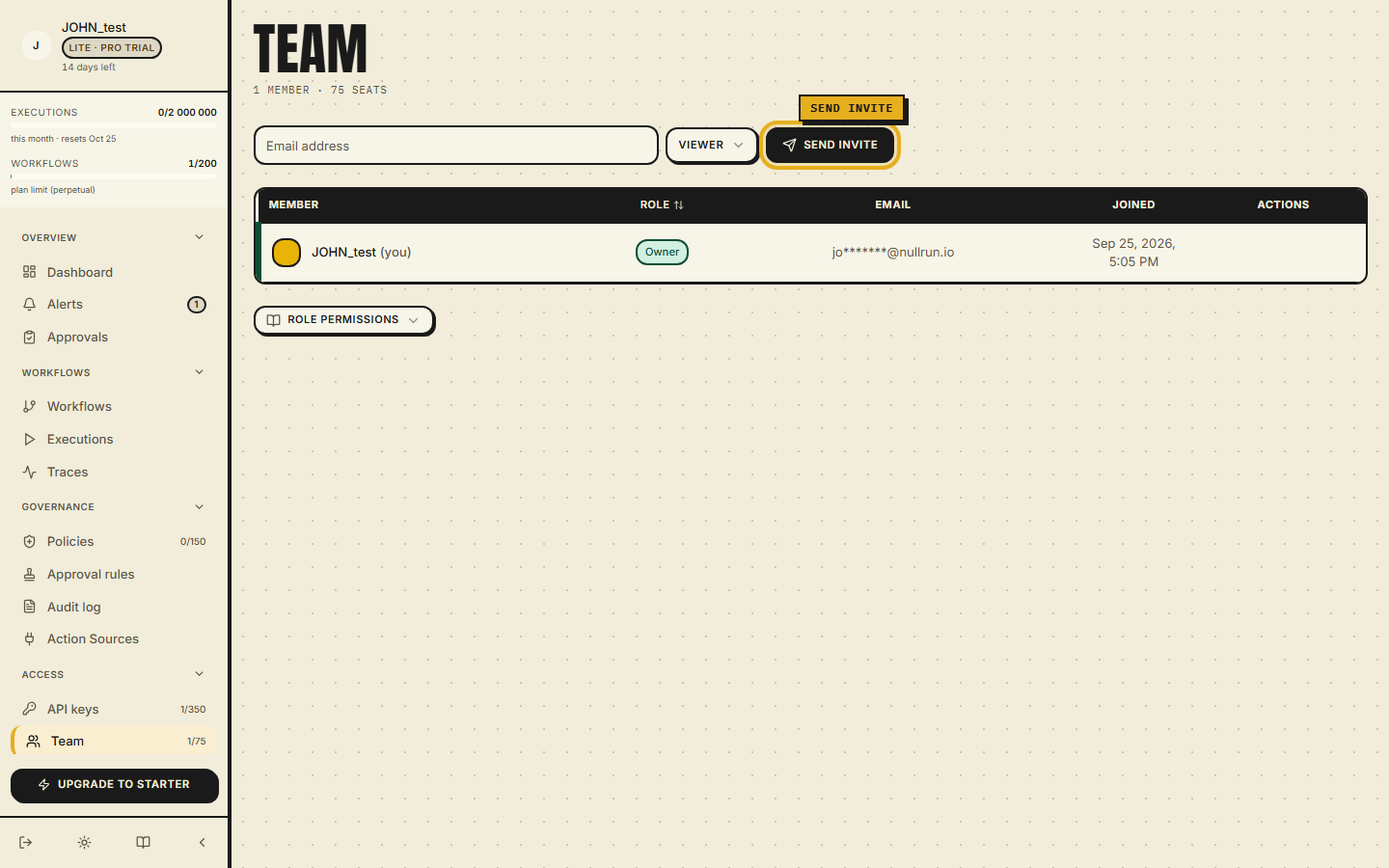
The Team page is the org-membership surface. It lists every
member and every pending invite, surfaces the per-role capability
matrix, and lets owners + admins invite or remove people. It lives
at /control-center/team in the sidebar under Access and is
gated by the team plan feature (Growth and above).
Roles and what each can do
There are four roles, ranked from most to least permissive:
| Role | Capabilities |
|---|---|
| Owner | Everything an admin can do, plus transfer org ownership, delete the org, manage billing. There is always at least one owner; the last owner cannot be demoted. |
| Admin | Invite / remove members, change roles for non-owner members, edit all policies, manage API keys, configure notifications. Cannot delete the org or change billing. |
| Operator | Use the dashboard read/write — view workflows, executions, traces, audit log; approve / deny pending requests; create / edit policies and API keys. Cannot change team membership or billing. |
| Viewer | Read-only — view workflows, executions, audit log, MCP servers, but cannot mutate anything (including approve / deny). |
The full capability matrix is also rendered as a section inside the page (so an admin can confirm what they're granting before sending an invite).
Members table
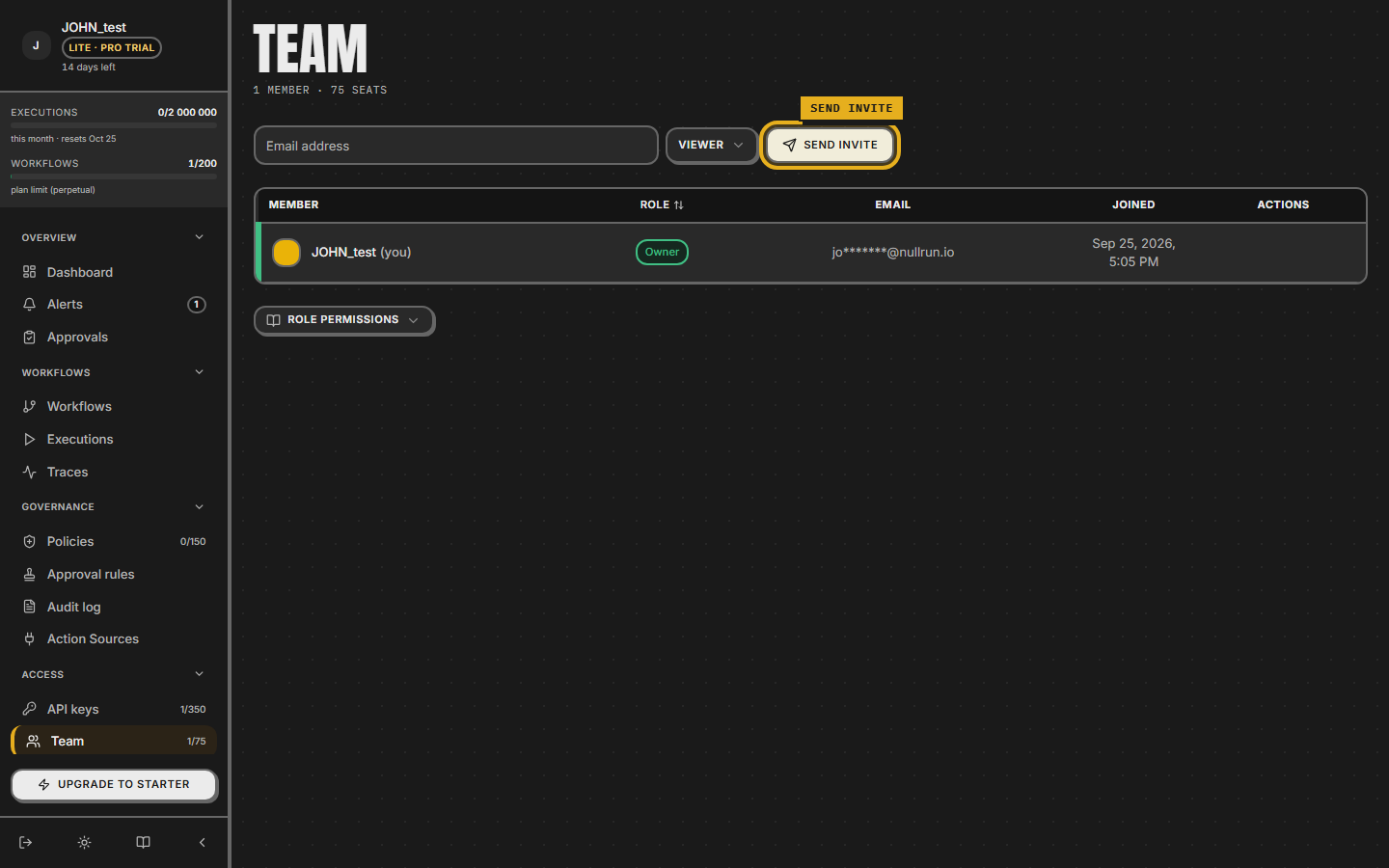
The members table is sortable by role (asc / desc) and shows:
- Avatar (initials in colour tile, or OAuth avatar for GitHub / Google users).
- Name + email (masked via
maskEmailfor non-self rows to prevent screen-shoulder disclosure). - Role (select dropdown for owner / admin; non-owners show a select for the other three roles).
- Joined at (RFC-3339 timestamp; older rows predating the
migration render
—). - Remove button (with confirmation dialog; the last owner cannot be removed).
Owners and the current user are pinned near the top of the list regardless of sort order, so an admin never accidentally scrolls past themselves.
Invites
Above the members table is the Invite panel with an email field + role selector. The dialog rejects:
- Self-invites —
You cannot invite yourself. - Existing members —
This person is already a member. - Duplicate pending invites —
Invite already sent to this
  email
.
Only owners and admins see the invite panel; operators and viewers see a read-only members list.
After sending, the invite appears in a separate Pending invites section below the members table. Each pending row shows:
- Email + role + Token (copyable deep link).
- Last send status —
pending/sent/failed(with SMTP error text onfailed). - Last successful delivery timestamp.
- Resend and Revoke buttons.
The invite link is <APP_URL>/invite?token=<token>; the deep
link is stable until the invite is revoked or accepted.
Seat quota
The page header shows N / <plan-cap> seats used. The seat count
includes both active members and pending invites, so an admin
sees the quota cost of every outstanding invite in real time.
When the org hits the seat cap, the invite panel disables the
send button and surfaces an upgrade prompt — Team seat limit
reached — N of N seats used — that links to Billing & Plan
(?tab=plan).
Plan gating
The Team page itself renders a TierGate upgrade prompt for
plans without the team feature; the sidebar link is also hidden.
Lite users cannot view the page, and the backend rejects every
member / invite mutation with 403 seat_feature_disabled.
Audit trail
Every invite send, resend, revoke, role change, and removal is
recorded in the audit log with the actor's decided_by UUID.
Admins can search the audit log by action = team.* to reconstruct
who did what to whom.
Where to read next
- Organization — for changing the org name, contact email, and DPA acceptance.
- Billing & Plan — the Plan tab is where seat upgrades are purchased.
- Audit log — every team mutation leaves a row.
Deep dive
Roles are ranked rather than a flat set: viewer sits below operator, operator below admin, admin below owner, and a capability check compares tiers instead of matching names. Operator is a tier in its own right — allowed to approve, not allowed to change membership — and where a role crosses into organization storage it is recorded as an ordinary member rather than passed along as a tier comparison.
Owner authority is granted when the organization is created and does not depend on the plan, so a downgrade leaves the owner in place. Admin authority does depend on the plan. If the plan cannot be resolved the check refuses with a retry hint rather than returning a permissive answer, and a member row claiming admin on a plan that does not carry the capability grants nothing.
Seats count active members and pending invites together, so an outstanding invite shows its cost before it is accepted. An invite that would cross the cap is refused with a distinct error that the page renders as an upgrade prompt. Self-invites, duplicate pending invites, and invitations to existing members are each rejected outright rather than folded into an existing row. The last owner cannot be demoted or removed, and removing anyone ends their sessions for that organization so a live session cannot outlive the membership.
A membership belongs to exactly one organization, and an invite token binds its recipient to that organization only. Seat limits are carried by the plan, and an active trial is measured against the trial's own cap; a trial past its term resolves to the standard cap.